



Knowledge Cards
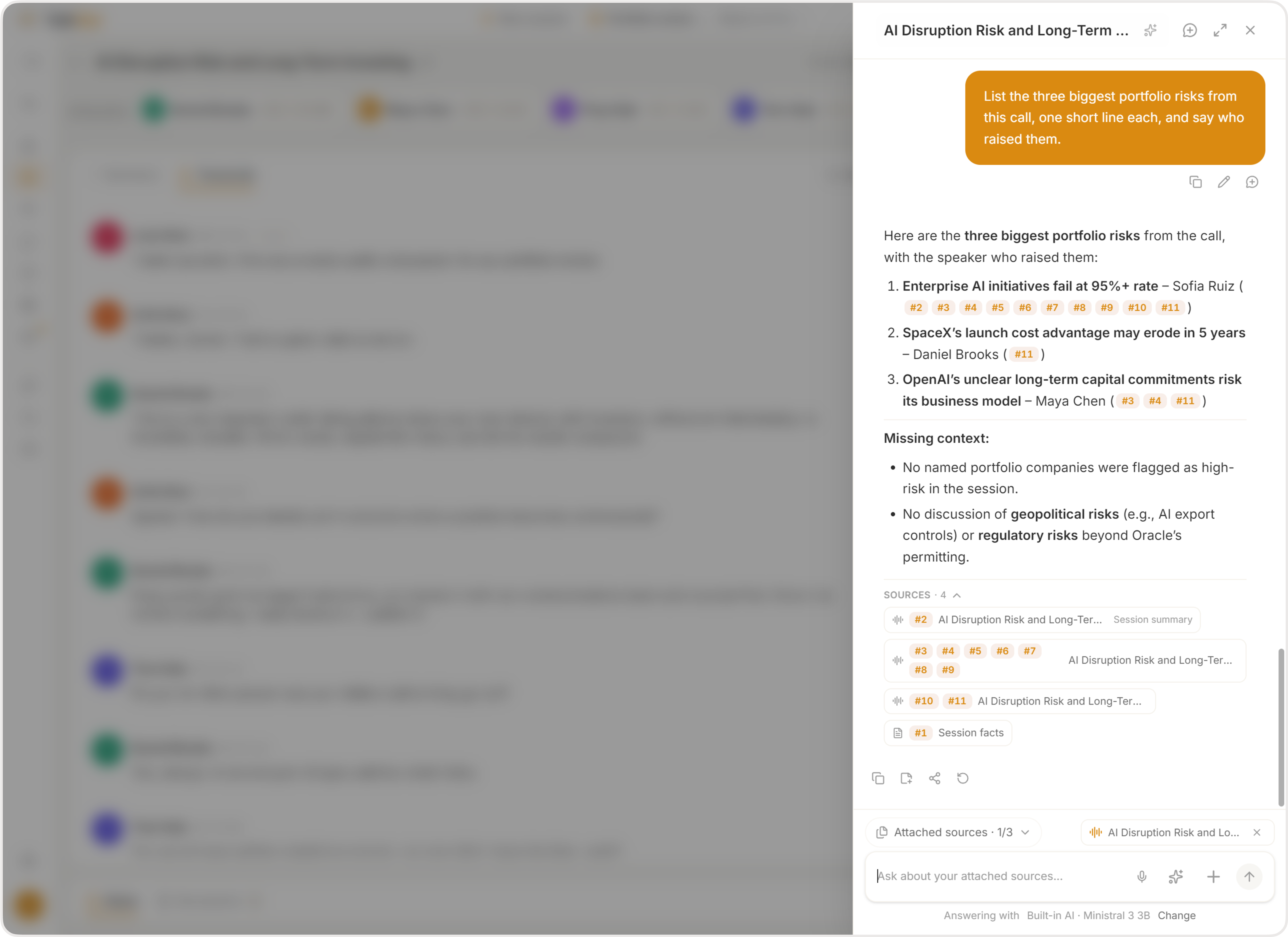
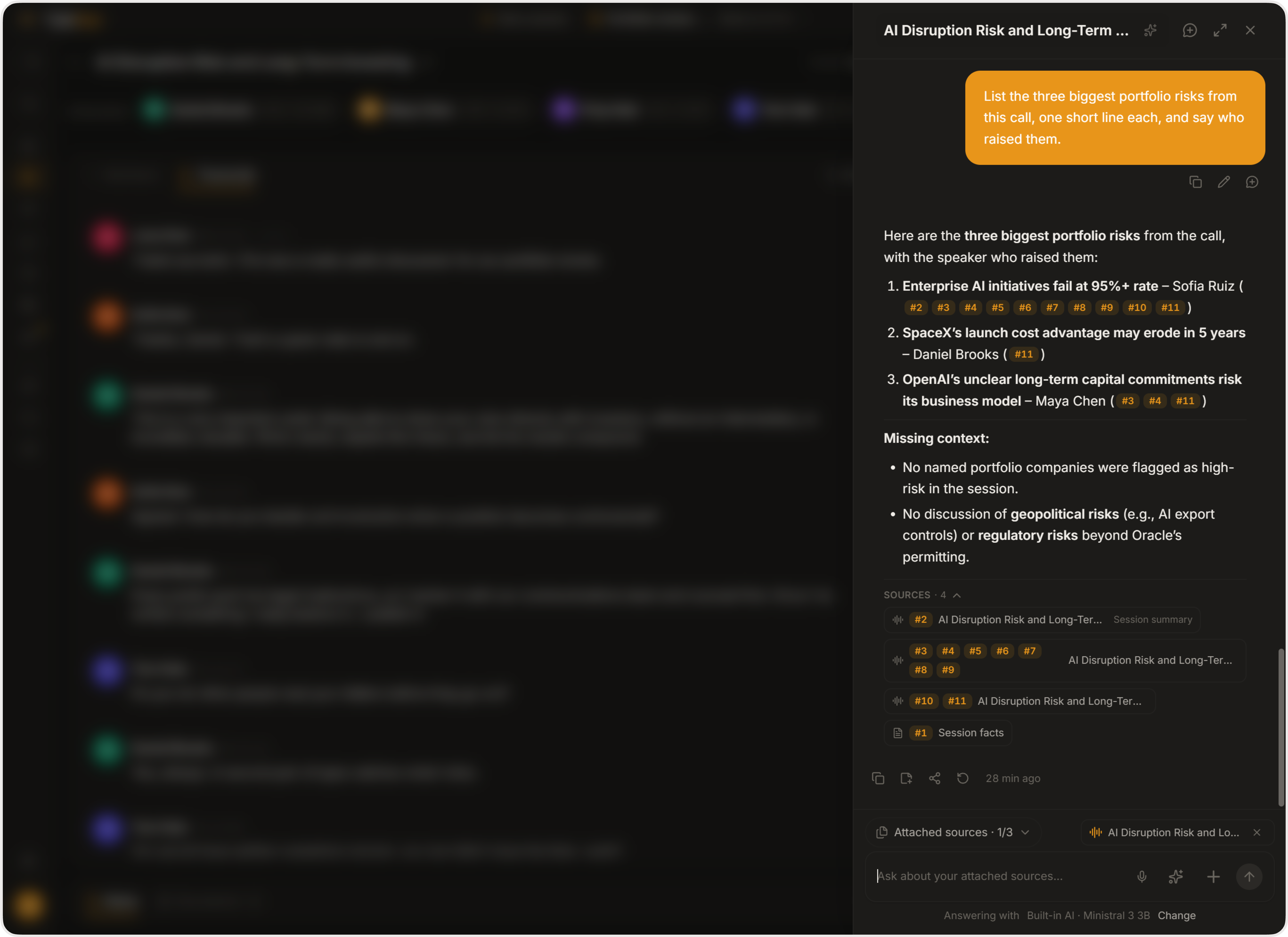
The Knowledge Cards and action items you attached light up when the conversation reaches them.
Bring goals, blockers, feedback, and prior commitments into recurring one-on-ones, and leave with clear next steps every time.
Runs on your machine · Local AI or your own key · No meeting bot
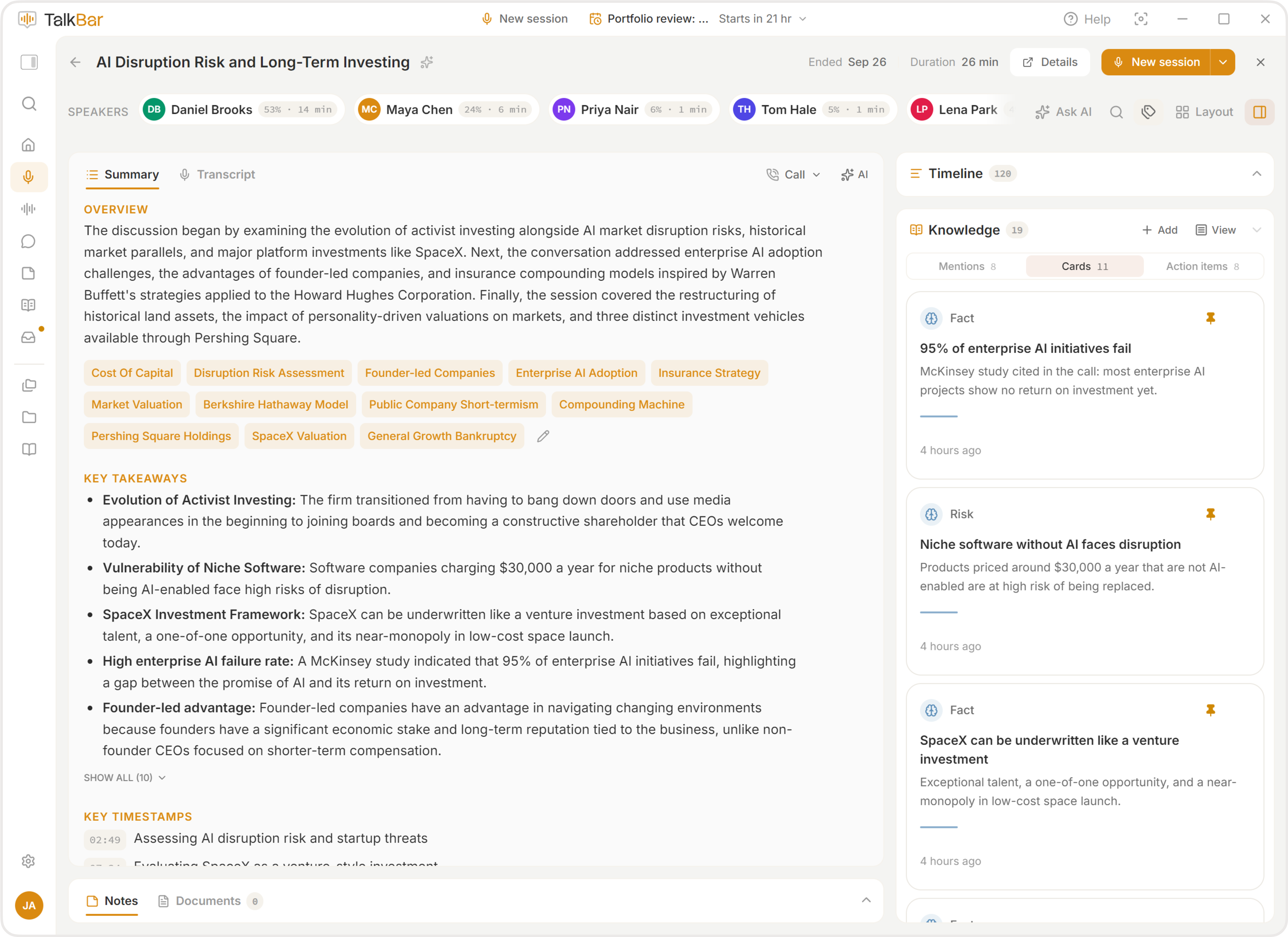
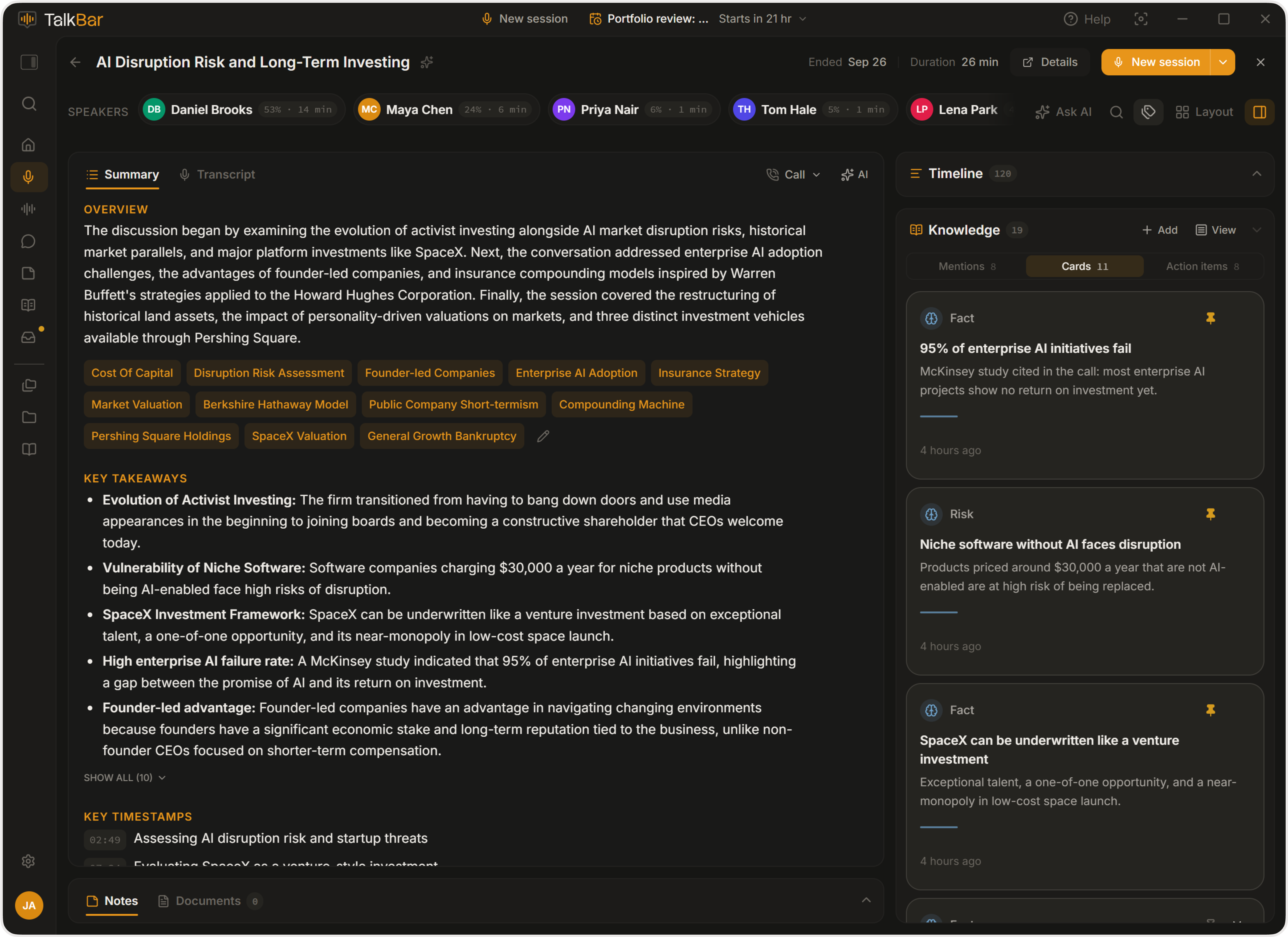
One-on-ones are where trust, feedback, and career context build up over months.
“A good 1:1 remembers the person, not just the agenda.”
When prior commitments and sensitive details are hard to find, every meeting restarts from a weaker place.
Attach prior goals, feedback, and open commitments so they’re in view while you talk.
Each person has a page with your past 1:1s, notes, and open action items.
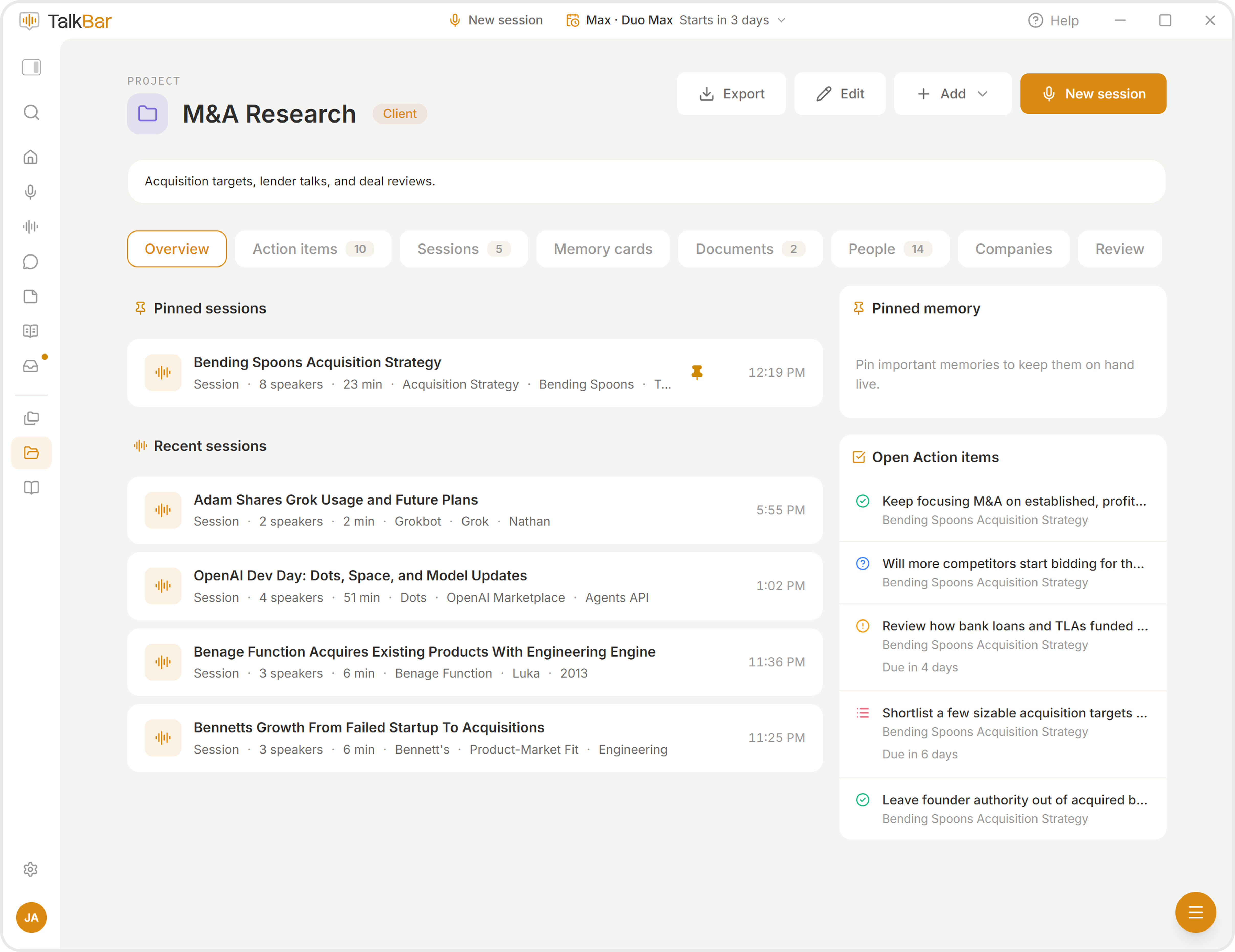
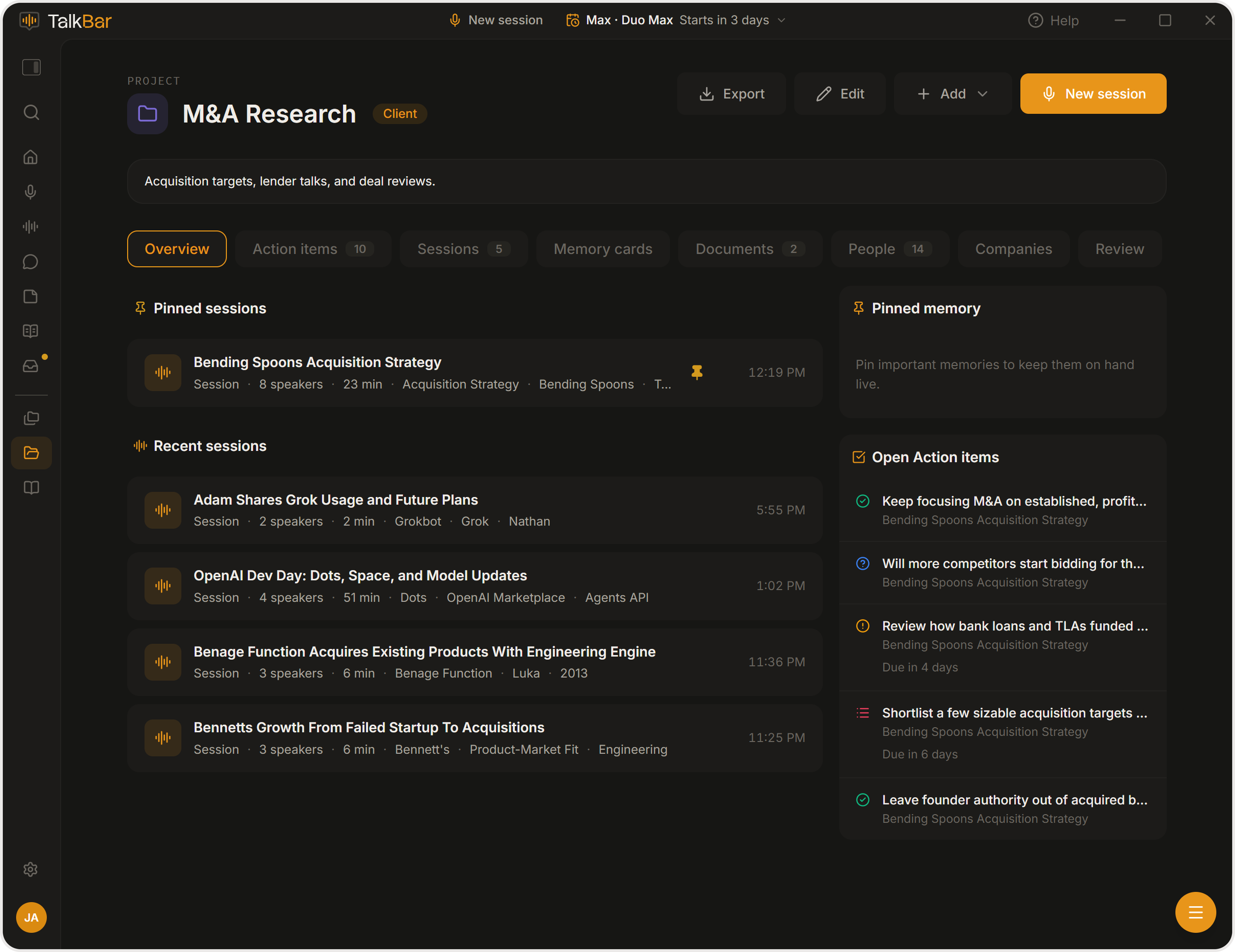
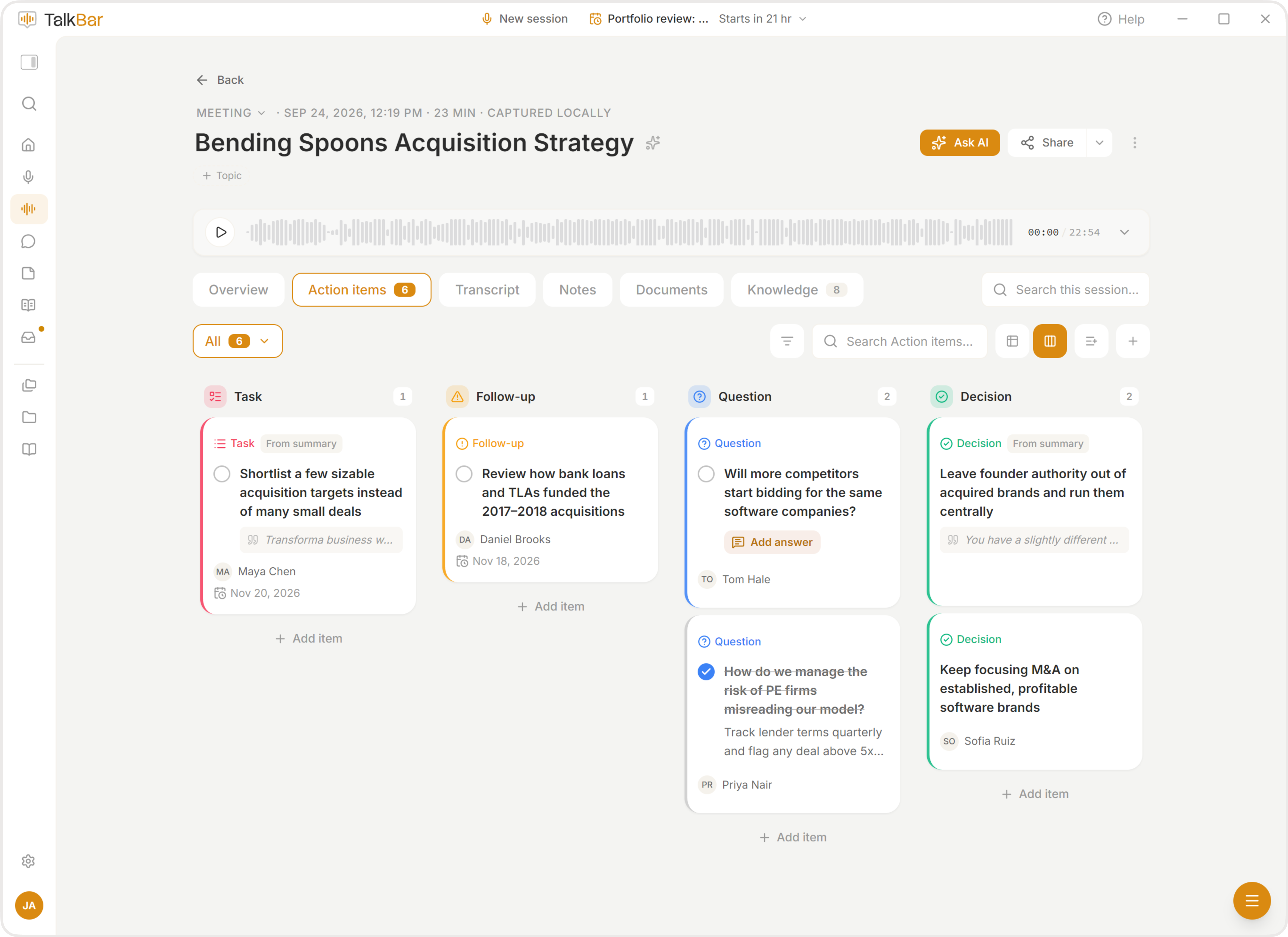
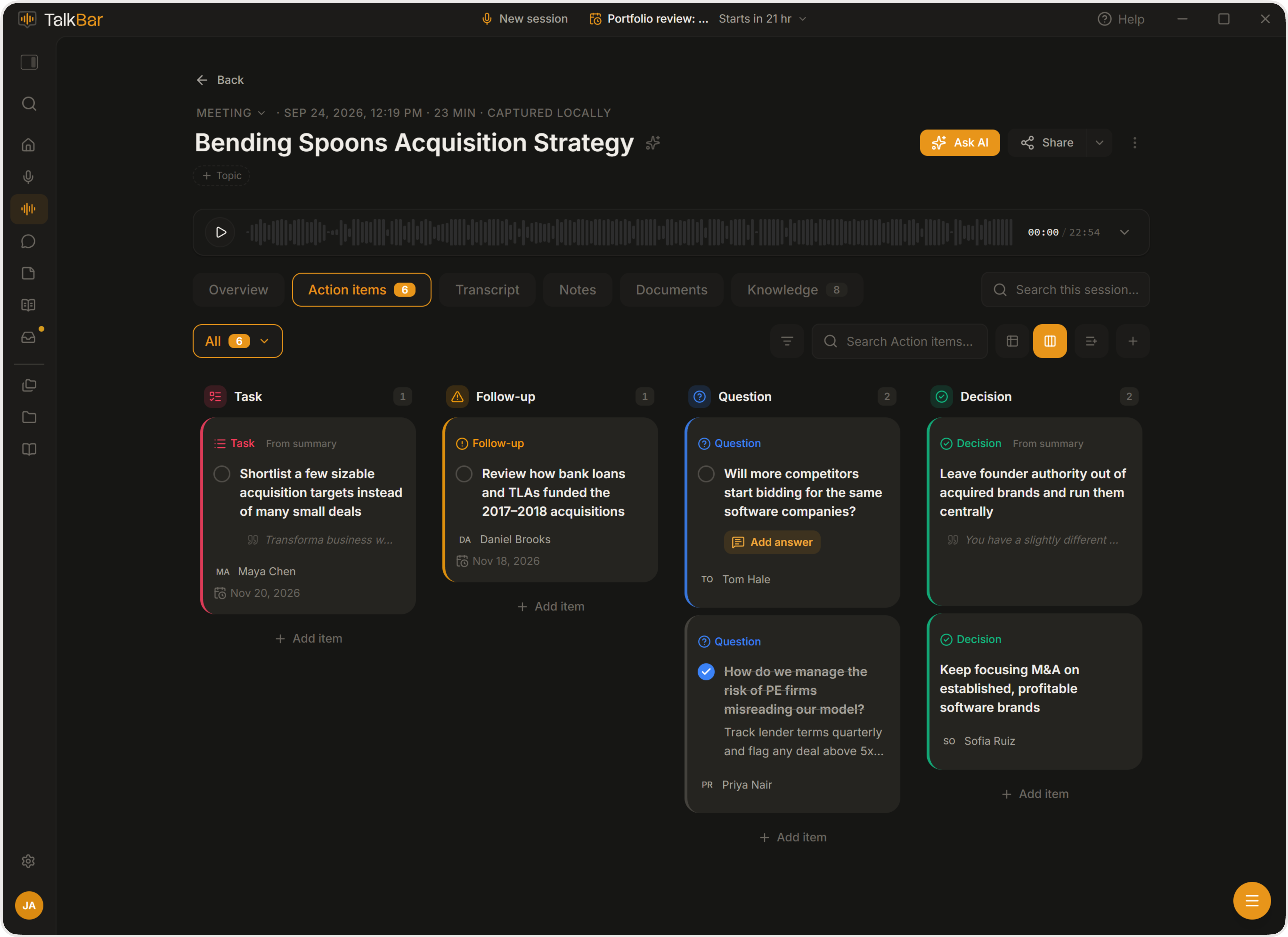
Turn each meeting into owners, feedback notes, and action items for the next one.
Manager 1:1s
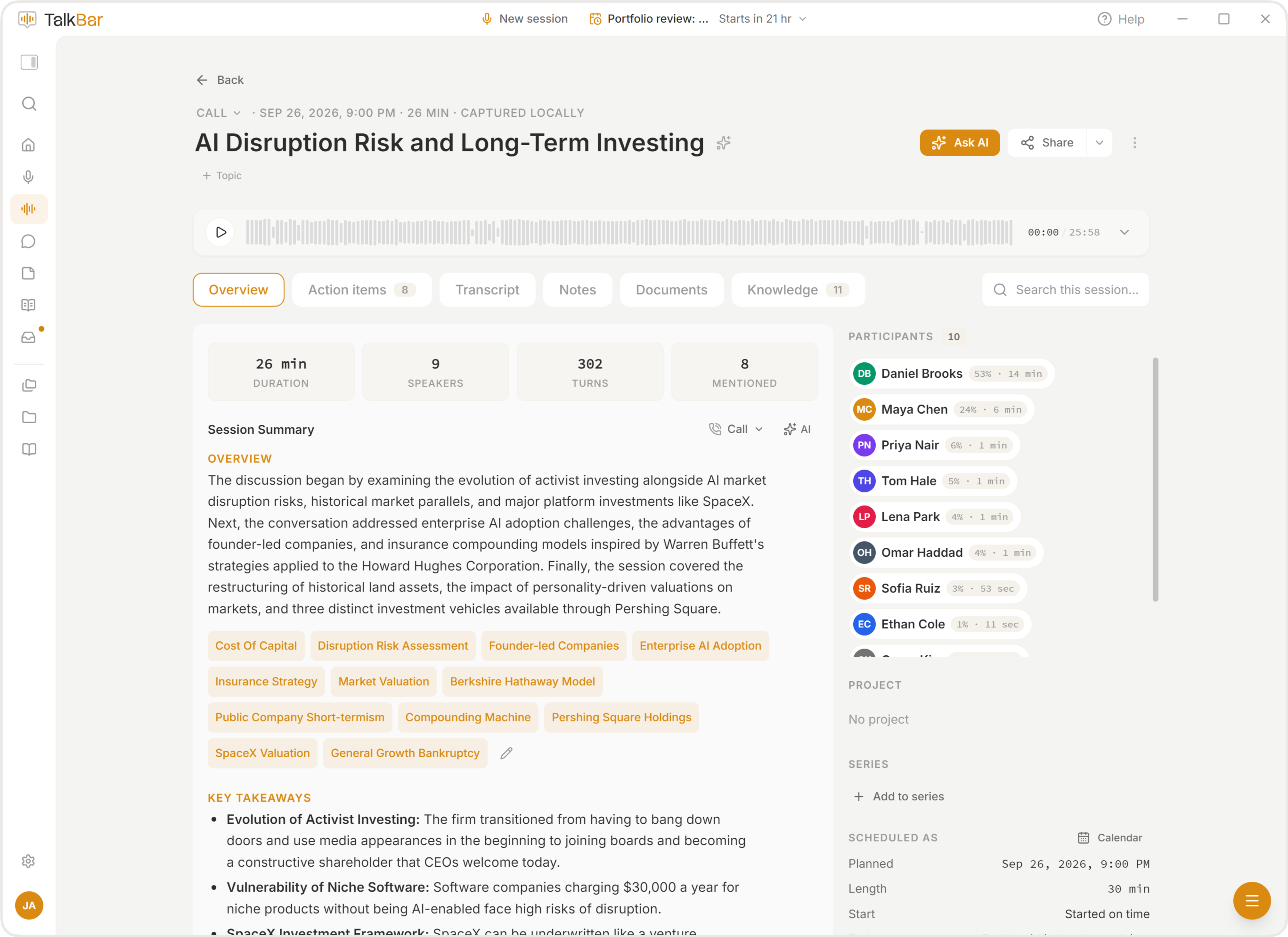
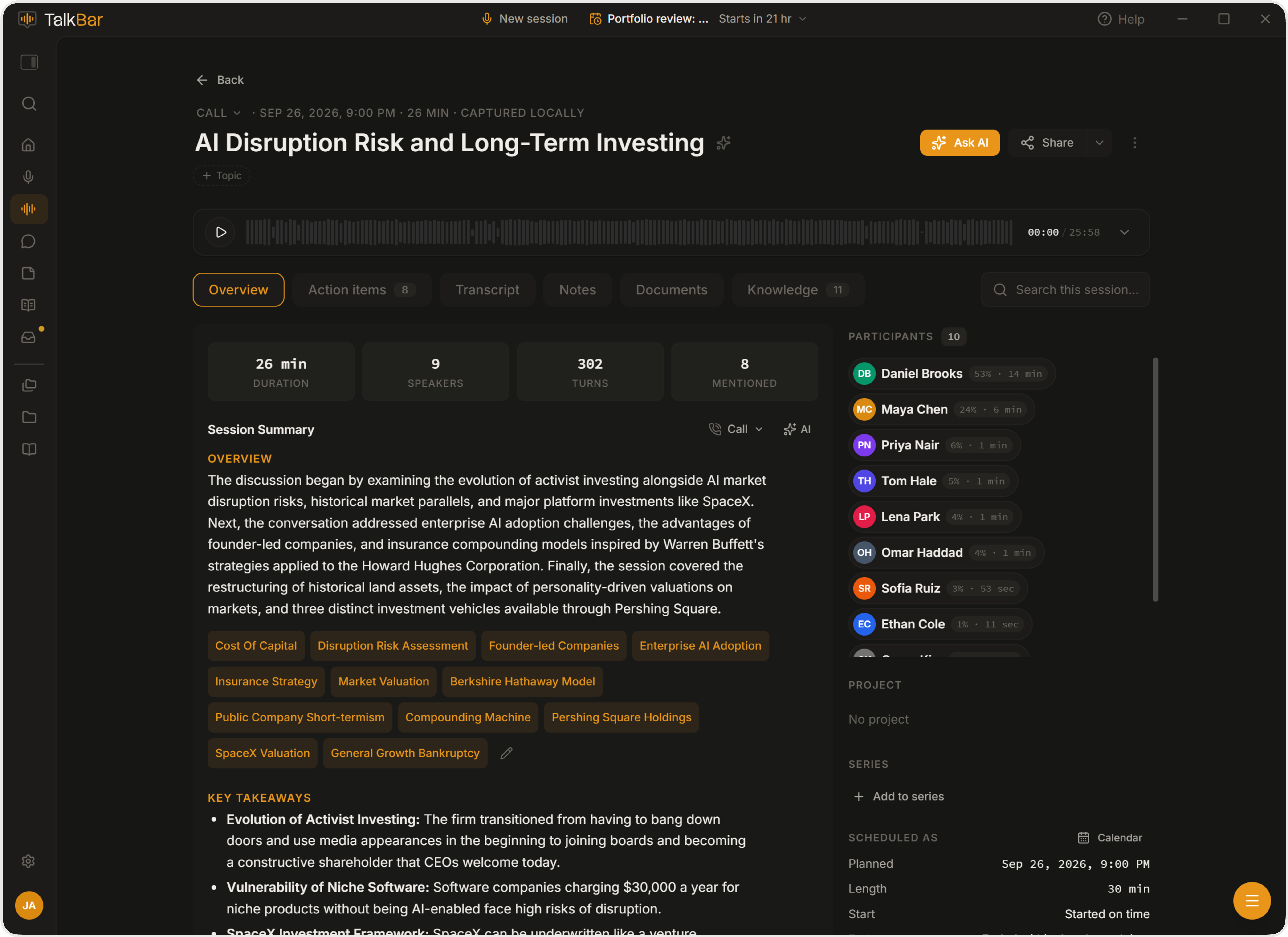
Remember goals, blockers, feedback, and commitments across recurring conversations.
Follow-up continuity
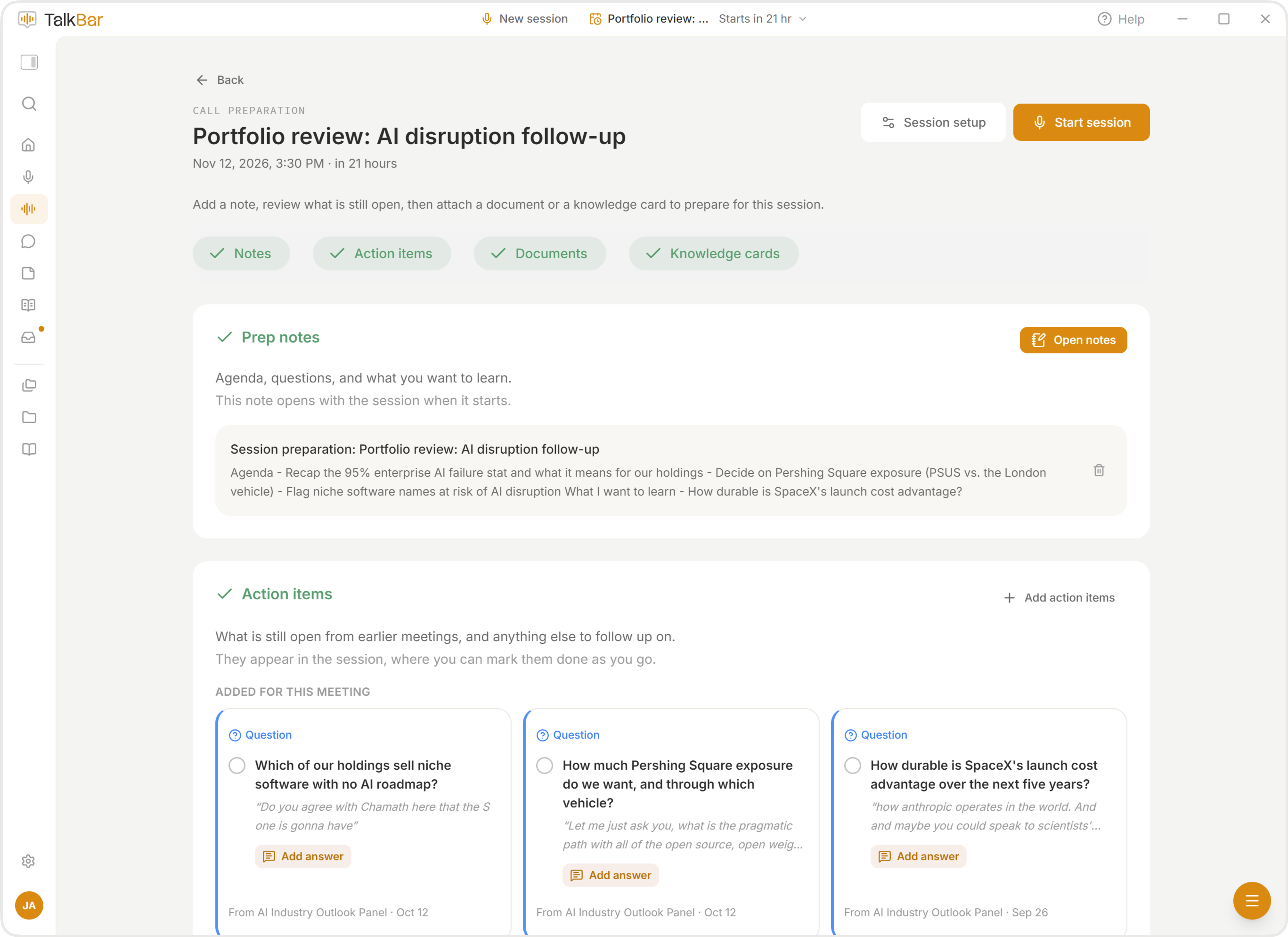
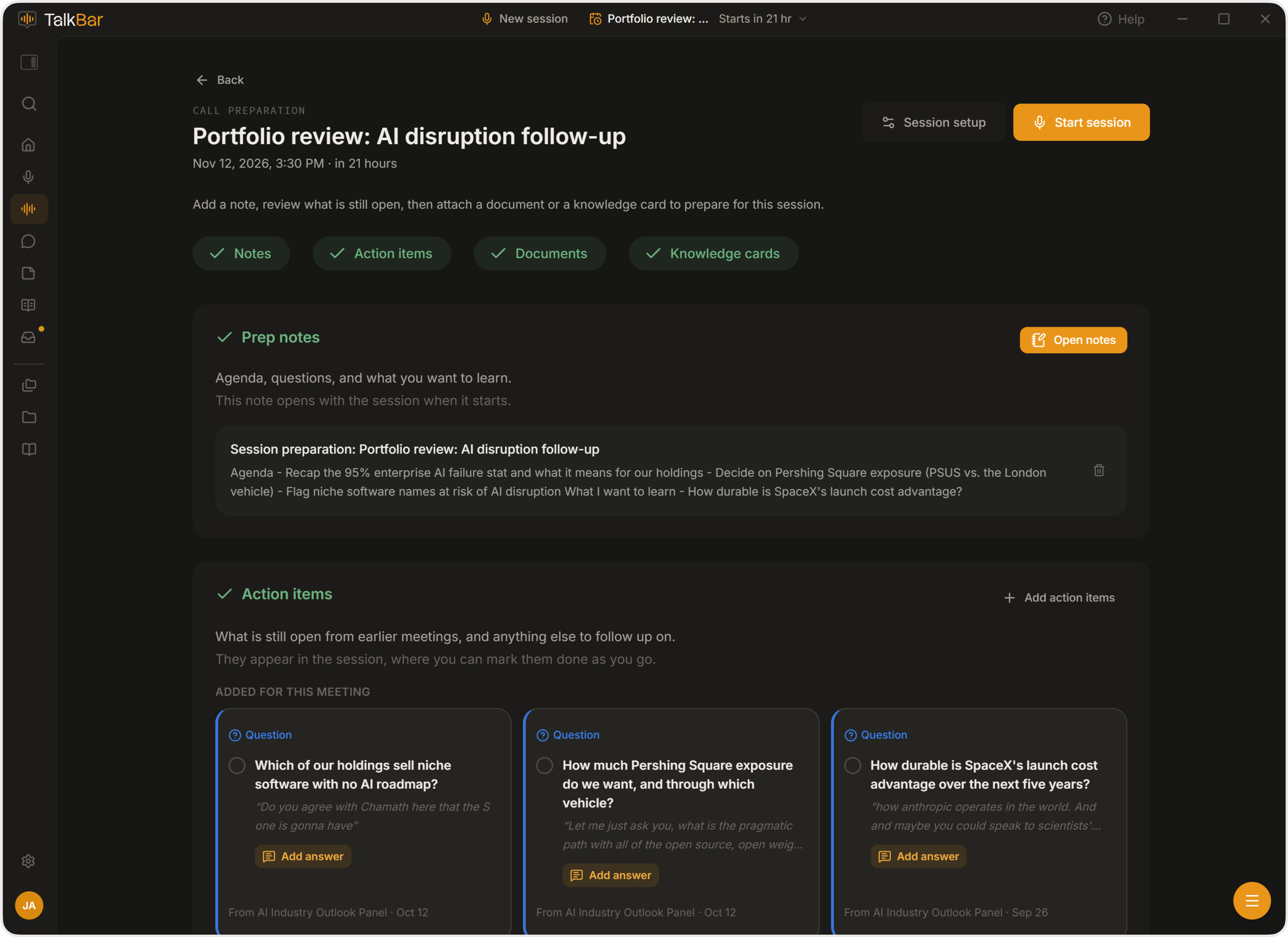
Add last time’s action items to the next 1:1. They light up when the topic comes back.
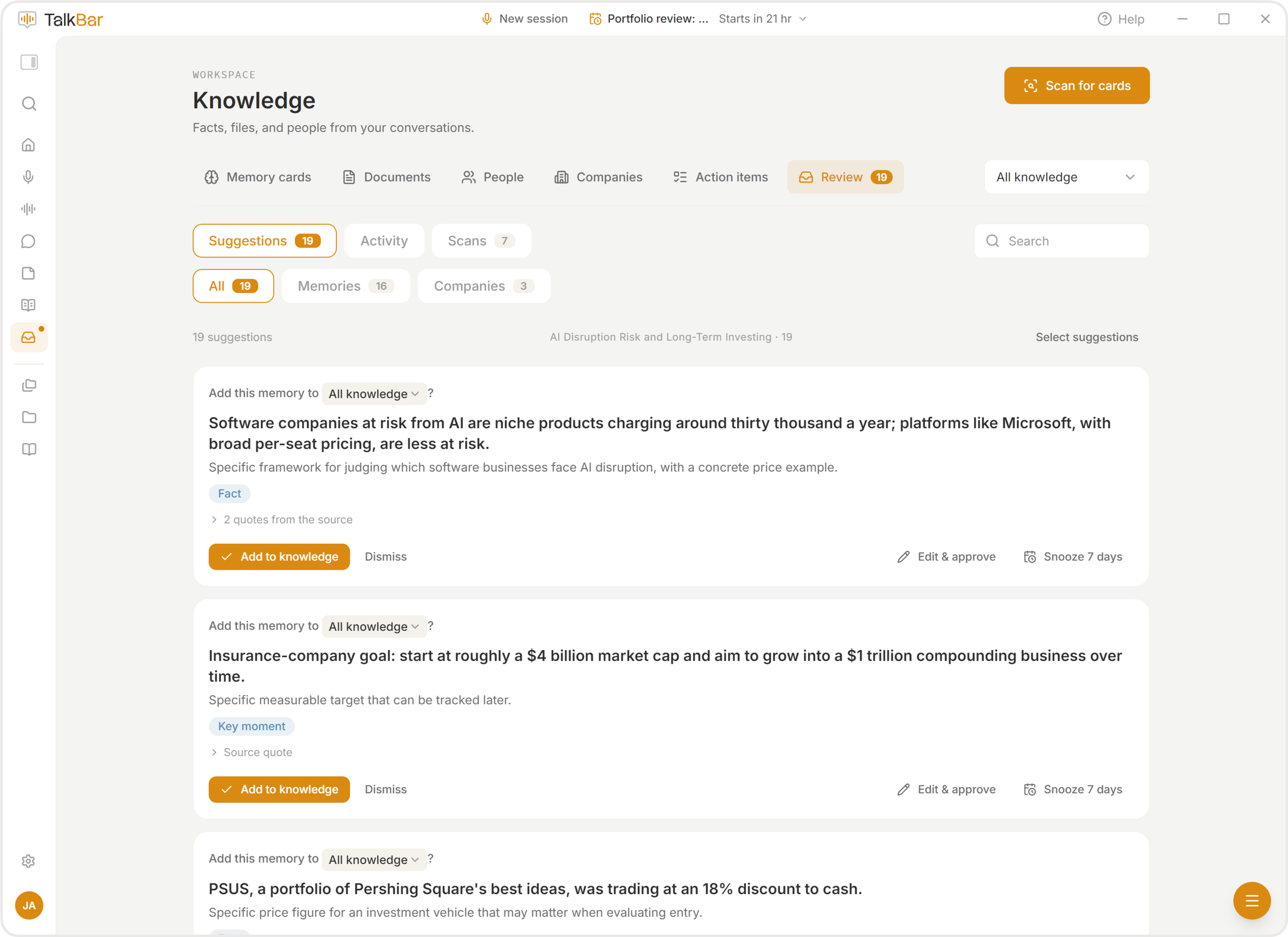
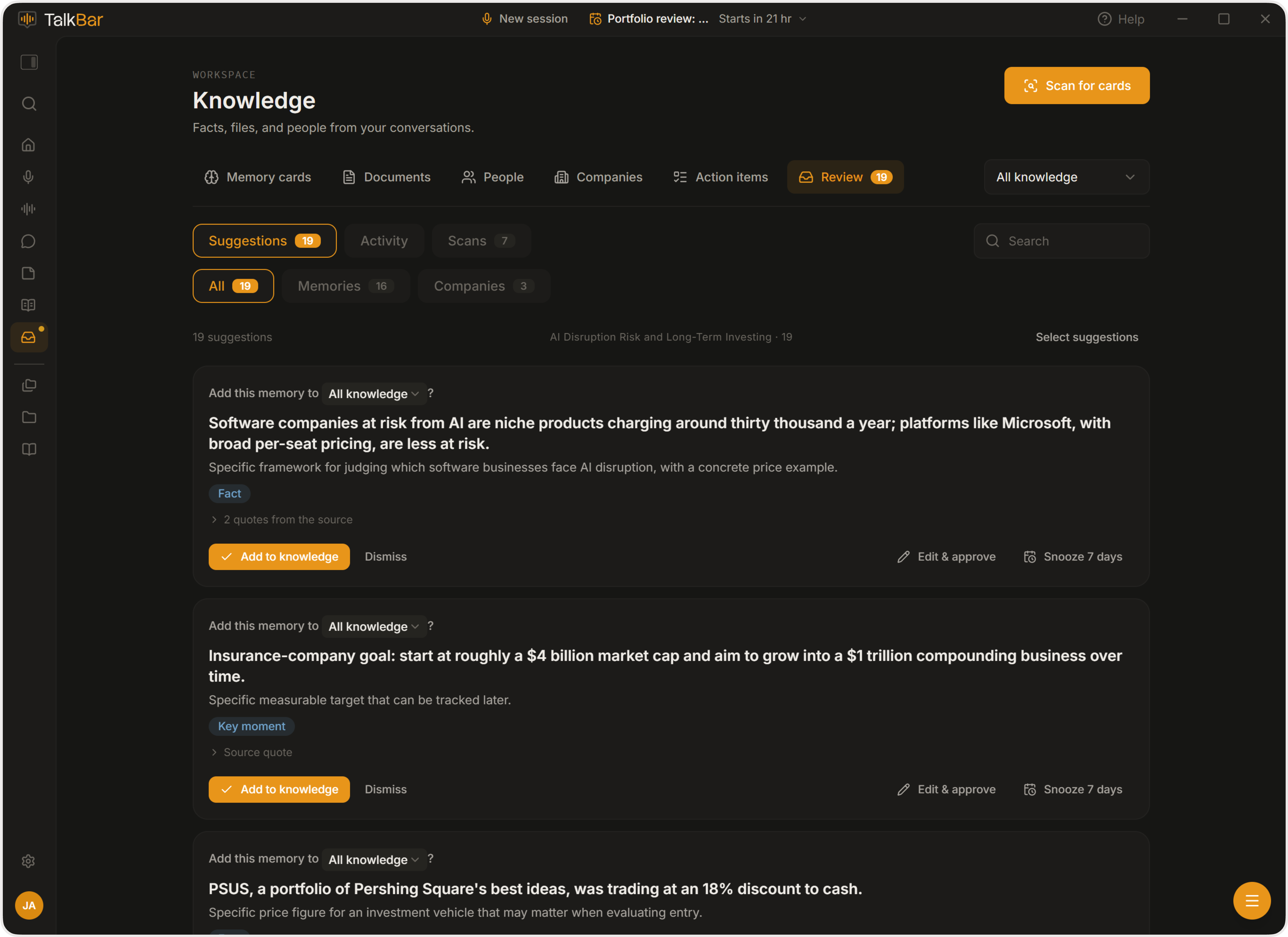
Sensitive feedback
Keep notes local when the conversation is personal or confidential.
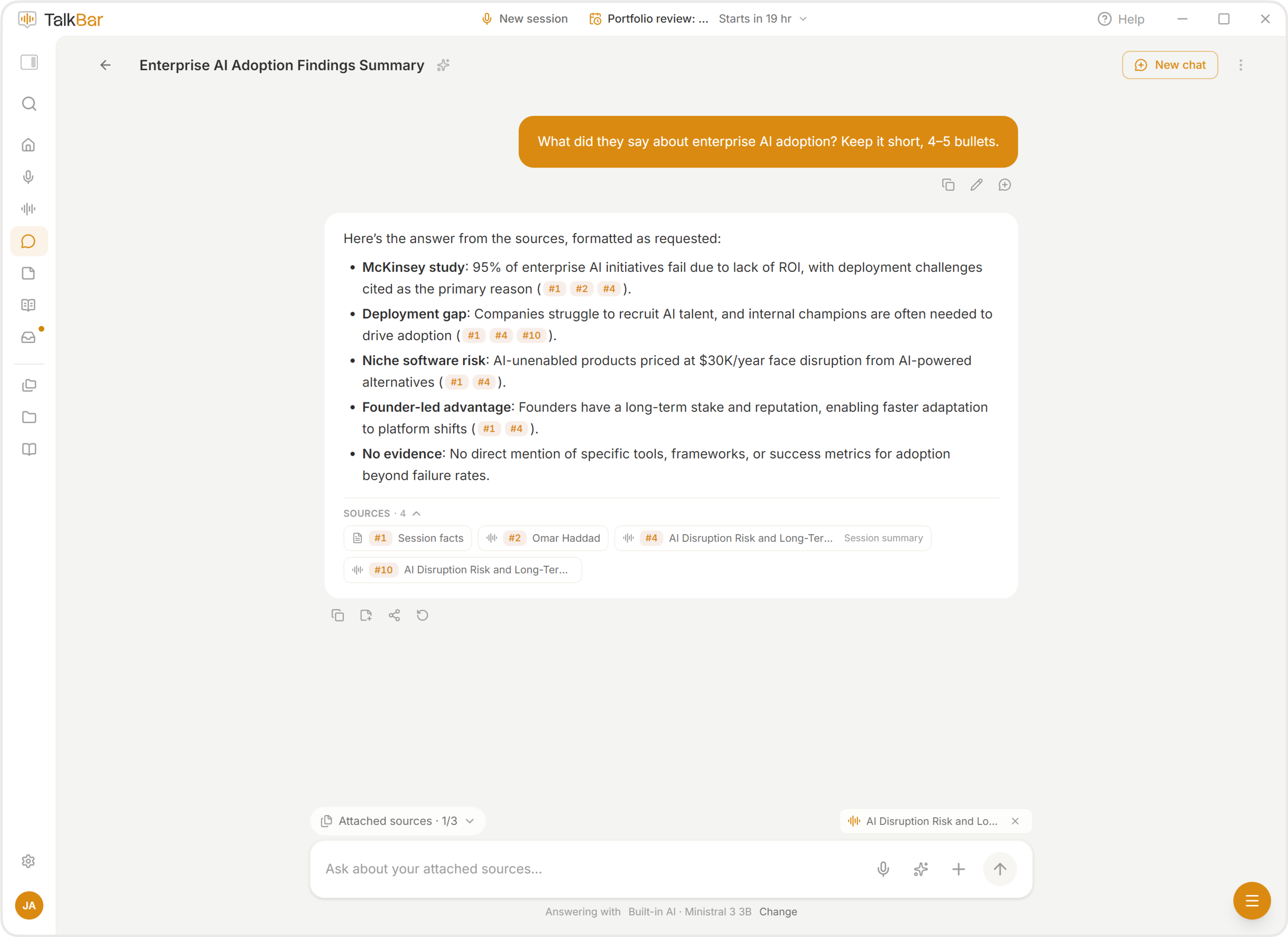
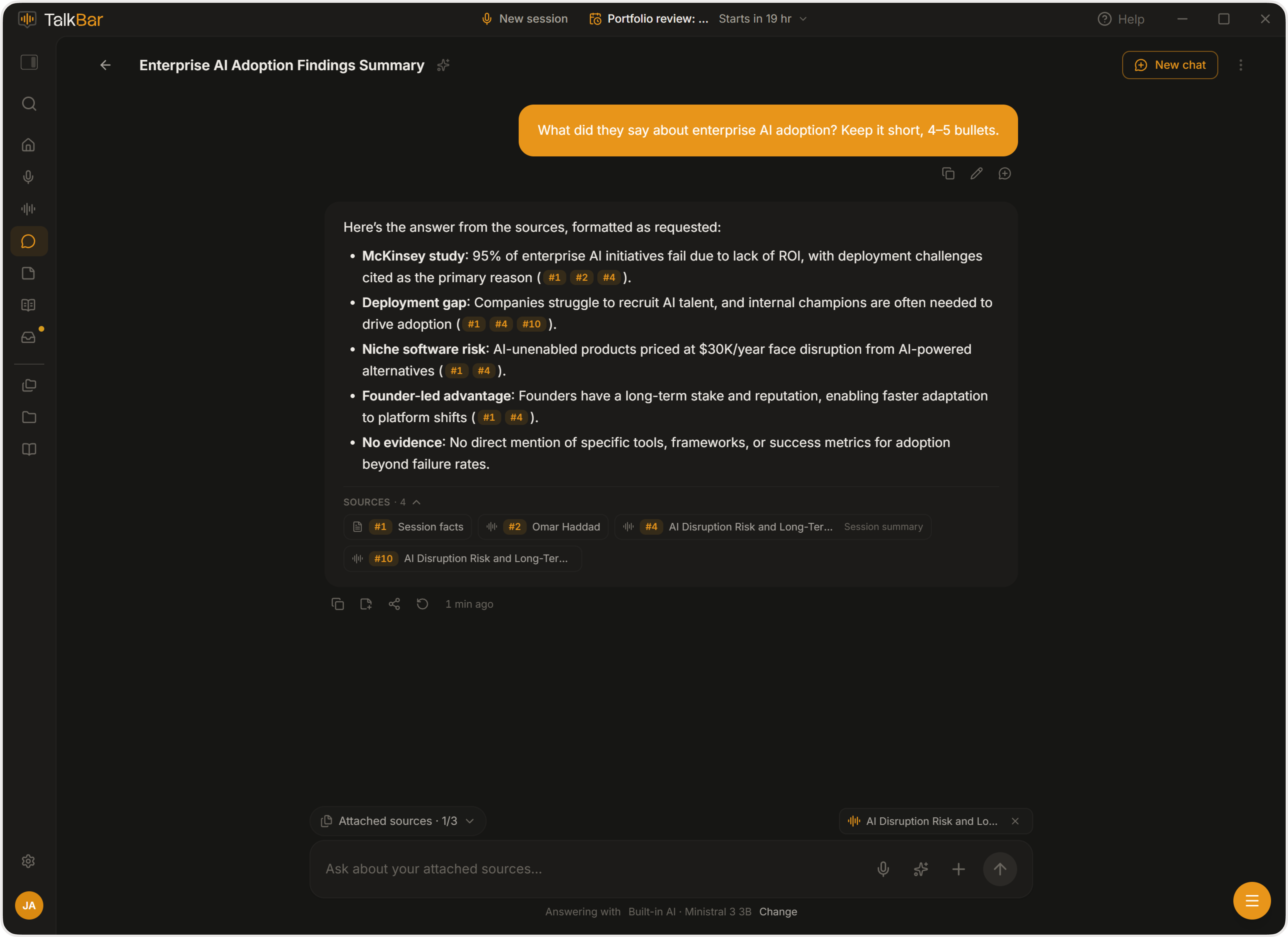
Action tracking
Leave with owners, dates, and practical next steps.
All that privacy comes in a calm, modern workspace that’s quick to learn and a pleasure to use every day. Click any screen to see it up close.
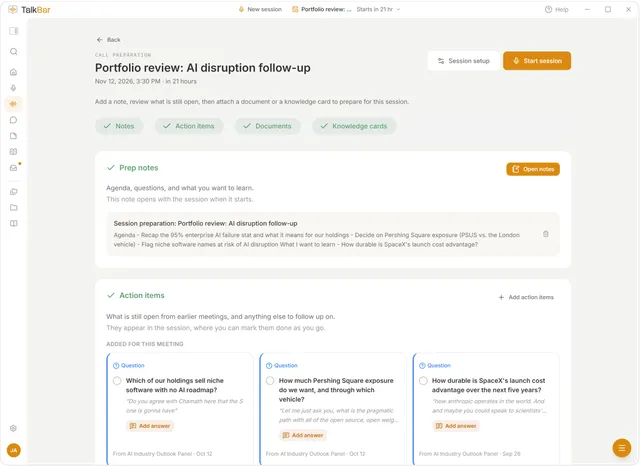
Prepare a call
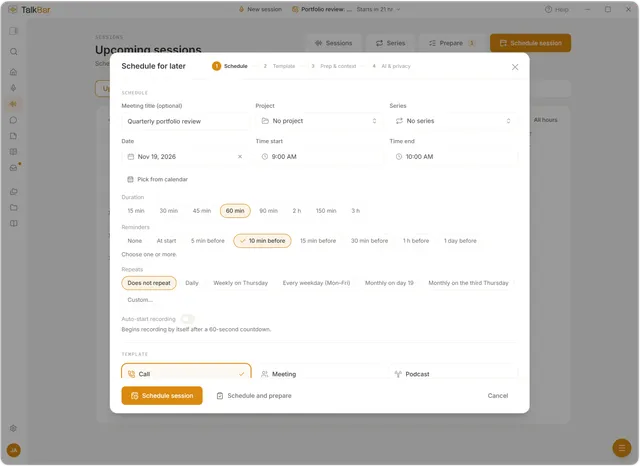
Schedule for later
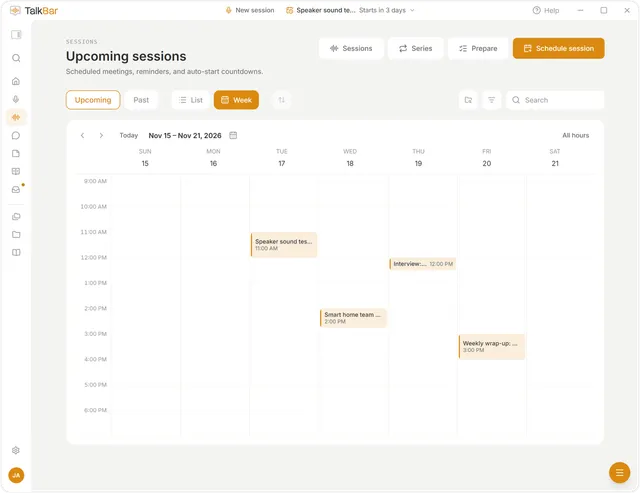
Upcoming sessions
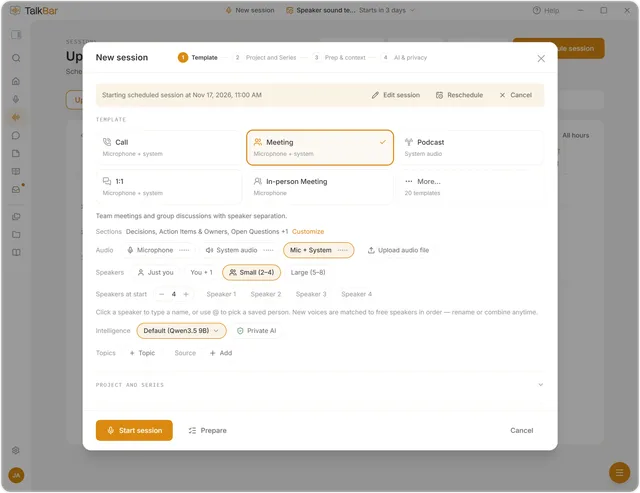
Start a session
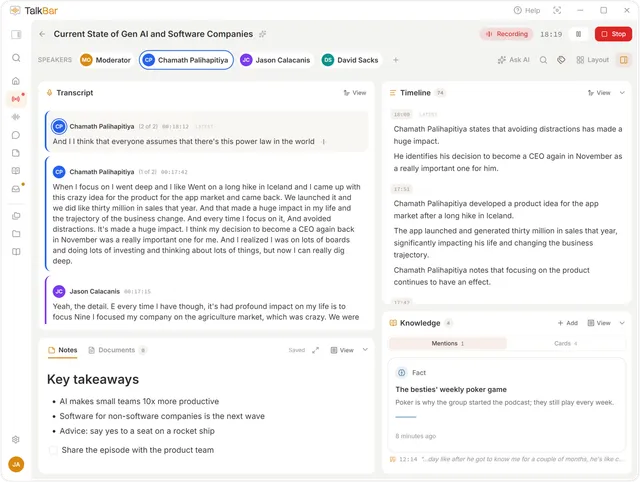
Live call
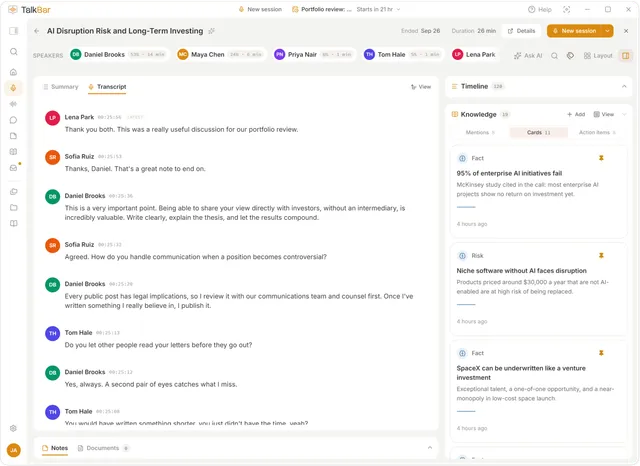
Transcript
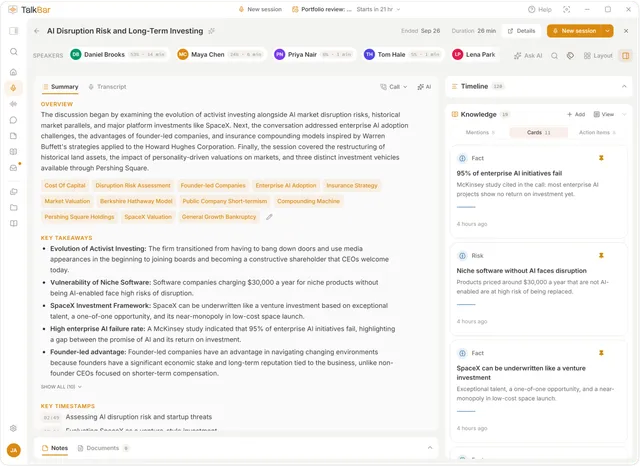
Knowledge Cards in a call
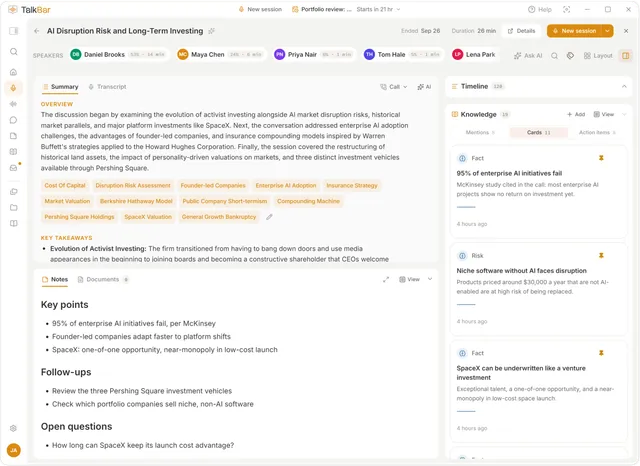
Notes, as you talk
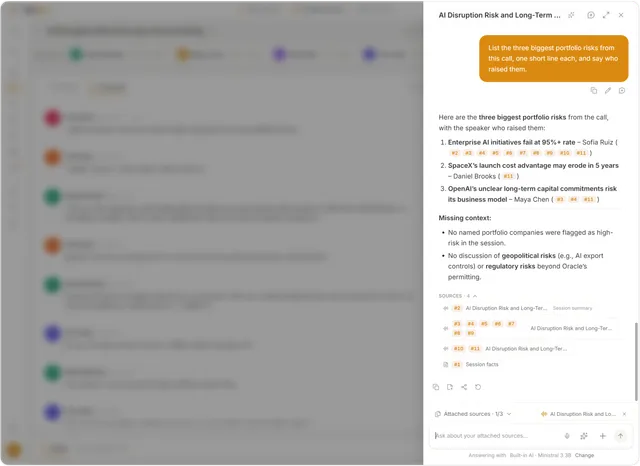
Ask during a call
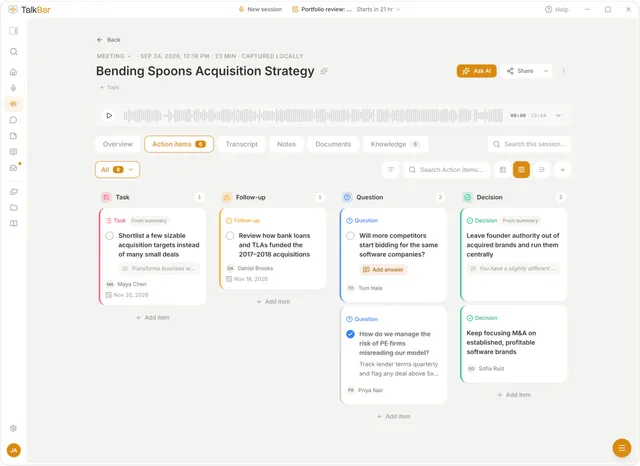
Decisions and follow-ups
Record meetings and calls from your desktop: your mic and your computer’s audio. No bot joins.
Notes, documents, Knowledge Cards, and action items for one call or a recurring series.
Import PDFs, Word files, and Markdown to read, search, and scan for Knowledge Cards.
Write from a template and link notes to sessions, projects, or labels.
Search every transcript, note, and document, kept on your computer.
Decisions, open questions, and action items you can bring to the next call.
Names, acronyms, and client terms, spelled your way in summaries.
Ask one session, one document, or all your knowledge, with sources.
Shape summaries and notes, and add outputs like a client-ready recap.
Choose what’s recorded, whether audio is kept, and what’s deleted.
Markdown, text, HTML, JSON, subtitles, or ZIP, or straight to Obsidian or Notion.
Transcription stays on your computer. Run AI there too, with a built-in model or Ollama, or connect a provider with your own key.
Cards during the call, memory after it, exports only when you choose.
The Knowledge Cards and action items you attached light up when the conversation reaches them.
Leave with a summary, open questions, and action items for the next call.
Search sessions, notes, and imported documents, and open the source behind any answer.
Copy a recap, or export Markdown, HTML, or JSON, or send it to Obsidian.
Meeting, 1:1, interview, sales call, research, or one you built yourself.
Turn on your mic and your computer’s audio.
Add documents, notes, Knowledge Cards, and open action items.
Record from your desktop and follow the live transcript.
Polish the summary, move action items to the next call, and save new Knowledge Cards.
Capture without a meeting bot and keep your conversations on your computer. AI can stay there too, or bring your own key when you want a stronger model.
| Capability | TalkBar | Cloud meeting bots | Browser-only tools |
|---|---|---|---|
| All AI on your computerPrivate AI ModeTurn it on and transcription, summaries, and chat run on local models, built in or through Ollama. No external AI providers used even if you’ve connected one. | Yes | No | Varies |
| Bot-free captureRecords your mic and your computer’s audio. No bot joins the meeting. | Yes | No | Varies |
| Your workspace stays on your computerTranscripts, notes, and memory are saved locally. | Yes | No | No |
| Documents stay on your computerImported files are stored and searched locally. | Yes | Varies | Varies |
| Local AI or your own keySummaries, chat, dictation, and scans each run on the model you choose, local or with your key. | Yes | No | No |
| Live translation on your computerFollow the transcript in another language with a local model. English ↔ Russian, English → Spanish, German, French. | Yes | No | No |
| Nothing is remembered without your OKKnowledge scans only suggest. You approve, edit, or dismiss every card. | Yes | Varies | Varies |
| Scan a file without keeping itA temporary upload feeds one scan, then is removed from your library. | Yes | No | No |
| You choose whether audio is keptKeep the recording, or keep only the transcript. | Yes | Varies | Varies |
| Your data as plain filesOpen your data folder, make a ZIP backup, and restore it anywhere. | Yes | No | No |
| Knowledge Cards you attachThey light up when the conversation reaches them. | Yes | No | No |
When you compare tools, look at where the recording, the notes, and the AI actually live.
Yes. Search past 1:1s with that person and start from the Performance review template.
No. TalkBar records your mic and your computer’s audio from the desktop, so no one new joins the participant list. Recording-consent rules still apply.
On your computer. It stays there unless you export or share it, or use an AI provider with your own key.
Windows · Windows on Arm · Mac with Apple silicon
Download TalkBarChoose the version for your computer.
Windows 10 or 11, 64-bit
Windows 11 on Arm
Mac with Apple silicon, macOS 13.4 or later
TalkBar is in private preview. Leave your email and we’ll send one message when it’s ready.
Have a question?